Setting Up a Raspberry Pi Cluster with ClusterHAT (Part 2: Ansible)
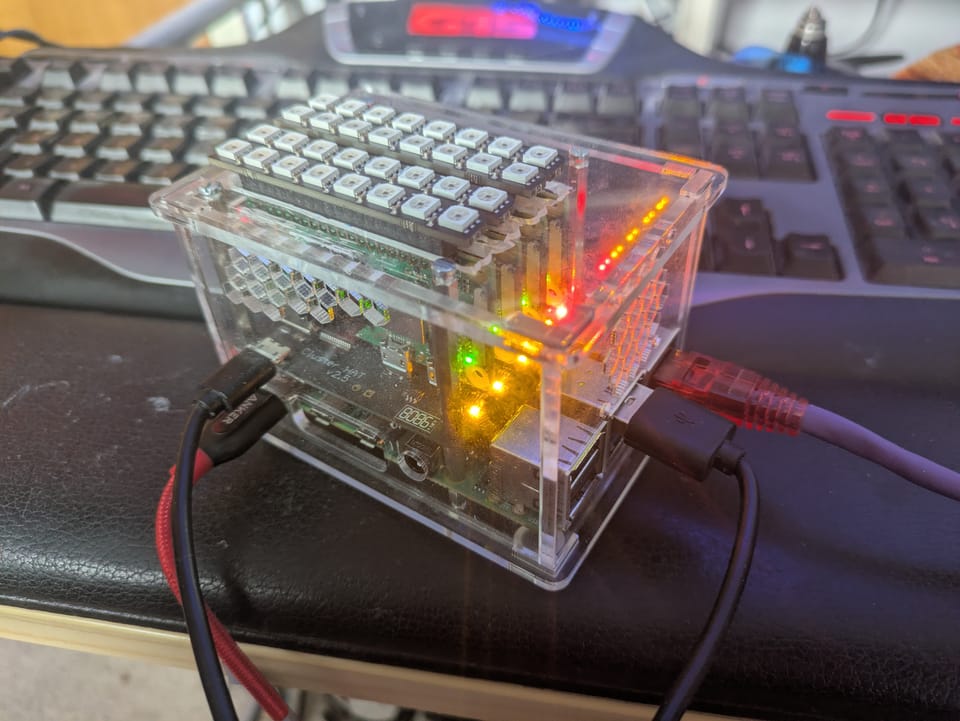
In Part 1, we built the foundation of our Raspberry Pi cluster - installing the OS, configuring networking, and setting up SSH access across all nodes. At this point, you should be able to connect to all five hosts without being prompted for passwords.
Now it’s time to make life easier.
In this guide, we’ll introduce Ansible to automate configuration across your cluster. By the end, you’ll be able to run commands across every node simultaneously and prepare the system for Kubernetes in Part 3.
Step 1: Prepare Your Ansible Workspace
On your controller machine (the one with SSH access to all nodes), create a directory for your Ansible project:
mkdir ~/cluster-ansible
cd ~/cluster-ansible
This machine should already have:
- SSH key-based access configured (from Part 1)
- Connectivity to all nodes (
controller,p1–p4)
Step 2: Create Your Inventory File
Create a file named hosts:
nano hostsHere’s a structured inventory that groups your cluster effectively:
[kube:children]
controllers
workers

[kube:vars]
ansible_ssh_private_key_file=/home/pi/.ssh/id_rsa
ansible_user=pi
key_file=/home/pi/.ssh/id_rsa.pub

[controllers]
<controller ip> # (also 172.19.181.254)

[controllers:vars]
ansible_ssh_private_key_file=/home/pi/.ssh/id_rsa
ansible_user=pi
key_file=/home/pi/.ssh/id_rsa.pub

[workers]
172.19.181.1 # p1
172.19.181.2 # p2
172.19.181.3 # p3
172.19.181.4 # p4

[workers:vars]
ansible_ssh_private_key_file=/home/pi/.ssh/id_rsa
ansible_user=pi
key_file=/home/pi/.ssh/id_rsa.pub
ansible_ssh_common_args='-o ProxyCommand="ssh pi@<controller+ip> -W %h:%p -i /home/pi/.ssh/id_rsa"'
#ansible_ssh_common_args='-F /root/.ssh/config' # Alternative if ssh is set up. Change for the config file of the user.
Why This Structure?
By defining:
kube(entire cluster)controllersworkers
…you gain flexibility to target specific node types. This becomes especially useful later when Kubernetes roles differ between control plane and worker nodes.
Step 3: Your First Playbook
Let’s validate connectivity and ensure all systems are up to date.
Create a file called kubernetes-initial.yaml:
---

- name: "Kuberenetes Playbook for configuration"
  hosts: kube
  become: yes

  tasks:

      - name: "Test Reachablilty"
        ping:

      - name: Update and Upgrade Aptitude Packages
        apt:
          update_cache: yes
          upgrade: yes
          cache_valid_time: 86400 #One day
Run the playbook:
ansible-playbook -i hosts kubernetes-initial.yamlIf everything is configured correctly:
- All nodes should respond to the ping task
- Packages will update across the cluster
Step 4: Install Common Packages
Once connectivity is confirmed, it’s time to standardize your environment.
Extend your playbook with a baseline package set:
    - name: "Install supporting packages"
      apt:
        pkg:
          - python3-apt
          - sudo
          - nano
          - tcpdump
          - traceroute
          - net-tools
          - python3-pip
          - snmpd
          - lm-sensors
        state: present
This gives you:
- Better diagnostics (
tcpdump,traceroute) - Monitoring tools (
lm-sensors,snmpd) - Python support for future automation
Going Further: Useful Ansible Plays (Before Kubernetes)
Before jumping into Kubernetes, it’s worth strengthening your cluster with a few additional automation tasks.
1. Set Hostnames Consistently
Ensure each node has the correct hostname:
- name: Set hostname
  hostname:
    name: "{{ inventory_hostname }}"
2. Configure Time Synchronisation
Accurate time is critical for distributed systems:
- name: Install and enable NTP
  apt:
    name: chrony
    state: present

- name: Ensure chrony is running
  service:
    name: chrony
    state: started
    enabled: yes
3. Harden SSH Configuration
Improve security by disabling password authentication:
- name: Disable SSH password authentication
  lineinfile:
    path: /etc/ssh/sshd_config
    regexp: '^#?PasswordAuthentication'
    line: 'PasswordAuthentication no'
  notify: restart ssh
4. Expand Filesystem Automatically
Useful for fresh SD card images:
- name: Expand filesystem
  command: raspi-config --expand-rootfs
5. Create a Common User Environment
Standardize .bashrc, aliases, or environment variables across nodes.
6. Enable Monitoring Hooks
Prepare for observability by installing exporters (e.g., node exporters for Prometheus later).
Where You Are Now
At this point, your cluster is:
- Fully accessible via SSH
- Centrally managed with Ansible
- Consistently configured across all nodes
You’ve effectively turned five small devices into a manageable distributed system.
My complete initial configuration file
I added a couple of things to the file above, like making the cluster fully power up on restart.
---

- name: "Kuberenetes Playbook for configuration"
  hosts: kube
  become: yes

  tasks:

      # If this actually powers on the cluster, there will be an issue connecting to the workers!
      - name: power on the cluster
        command: clusterctrl on
        delegate_to: controller

      - name: copy clusterctrl service file over
        ansible.builtin.copy:
          src: files/clusterctrl.service
          dest: /etc/systemd/system/cluster-on.service
          owner: root
          group: root
          mode: '0664'
        delegate_to: controller

      - name: Ensure clusterctrl is enabled
        service:
          name: cluster-on.service
          enabled: yes
        delegate_to: controller

      - name: "Test Reachablilty"
        ping:

      - name: Update and Upgrade Aptitude Packages
        apt:
          update_cache: yes
          upgrade: yes
          cache_valid_time: 86400 #One day

      - name: "install supporting packages"
        apt:
          pkg:
            - python3-apt
            - sudo
            - tcpdump
            - traceroute
            - net-tools
            - python3-pip
            - snmpd
            - lm-sensors
            - chrony
          state: present

# Disabled as I personally use IPs for the controller.
#      - name: Set hostname
#        hostname:
#          name: "{{ inventory_hostname }}"

      - name: Ensure chrony is running
        service:
          name: chrony
          state: started
          enabled: yes

      - name: Disable SSH password authentication
        lineinfile:
          path: /etc/ssh/sshd_config
          regexp: '^#?PasswordAuthentication'
          line: 'PasswordAuthentication no'
        notify: Restart sshd

# Disabled as this is always run and not a check.
#     - name: Expand filesystem
#       command: raspi-config --expand-rootfs

  handlers:
        - name: Restart chronyd
          service:
            name: chronyd
            state: restarted

        - name: Restart sshd
          service:
            name: sshd
            state: restarted
If you use this full configuration file, you will also need the following file for the service ( to be placed on files/clusterctrl.service) - This does assume you are running an os of bookworm or more recent:
[Unit]
Description=Turn on ClusterHAT nodes
After=network.target

[Service]
Type=oneshot
ExecStart=/usr/sbin/clusterctrl on
RemainAfterExit=yes

[Install]
WantedBy=multi-user.target
What’s Next?
In Part 3, we’ll take the next big step: installing Kubernetes on your Raspberry Pi cluster and turning it into a fully functional container orchestration platform.
This is where your automation work really pays off.
Stay tuned.
About the author
Tim Wilkes is a UK-based security architect with over 15 years of experience in electronics, Linux, and Unix systems administration. Since 2021, he's been designing secure systems for a telecom company while indulging his passions for programming, automation, and 3D printing. Tim shares his projects, tinkering adventures, and tech insights here - partly as a personal log, and partly in the hopes that others will find them useful.
Want to connect or follow along?
LinkedIn: [phpsytems]
Twitter / X: [@timmehwimmy]
Mastodon: [@timmehwimmy@infosec.exchange]
If you've found a post helpful, consider supporting the blog - it's a part-time passion that your support helps keep alive.
⚠️ Disclaimer
This post may contain affiliate links. If you choose to purchase through them, I may earn a small commission at no extra cost to you. I only recommend items and services I’ve personally read or used and found valuable.
As an Amazon Associate I earn from qualifying purchases.