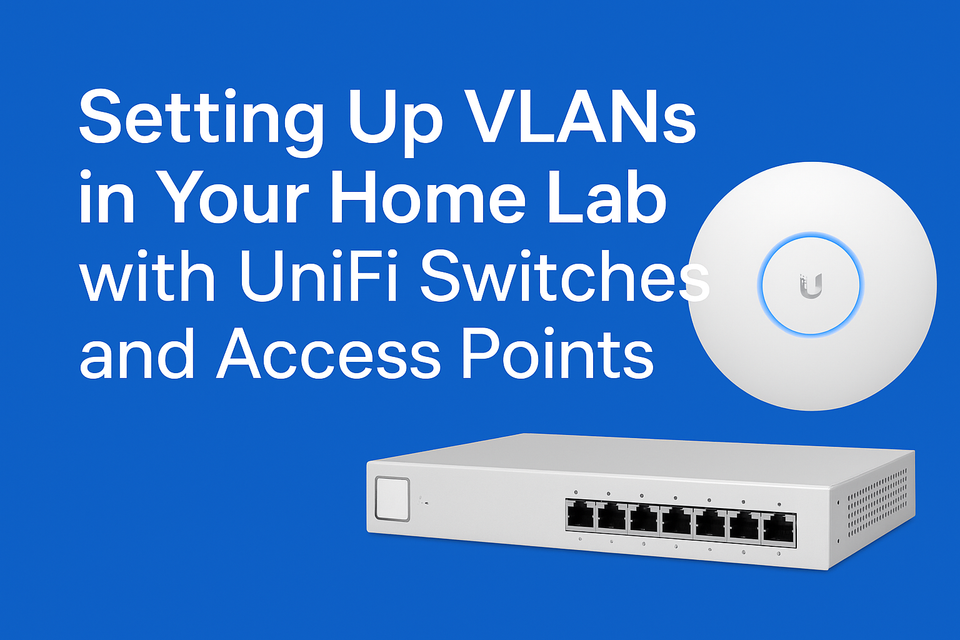
🧩 Setting Up VLANs in Your Home Lab with UniFi Switches and Access Points
If you’ve been slowly building your home lab, chances are your network has started to look like a tangle of cables, containers, and devices all talking to each other. That’s fine - until you realise your test VM is on the same subnet as your TV or smart bulb.
That’s where VLANs (Virtual Local Area Networks) come in.
VLANs let you segment your network logically without extra switches or cables - giving you better control, security, and performance.
In this post, we’ll go through:
- Why VLANs are worth using at home
- Why UniFi gear is ideal for it
- How to set up VLANs on your UniFi switch
- Extending VLANs to your UniFi AC Pro Wi-Fi APs
- Automating parts of your setup with Ansible and Terraform
- Example configurations and tips
🧠 Why Use VLANs at Home?
Even in a home lab, there are solid reasons to split things up into VLANs:
- Security & Isolation
Keep your IoT gear, smart TVs, and test servers away from your personal devices.
If a dodgy smart plug gets compromised, it can’t reach your NAS. - Performance & Management
VLANs let you prioritise or throttle traffic - for example, giving your gaming rig more bandwidth while sandboxing updates from a Pi-hole server. - Cleaner Network Design
You can logically separate traffic for IoT, VMs, guest Wi-Fi, and management - all on one UniFi switch.
💡 Why UniFi?
There are plenty of managed switch options out there, but Ubiquiti’s UniFi ecosystem hits a sweet spot for home labs:
- Unified management interface: All devices (switches, APs, gateways) appear in one dashboard.
- Cloud-optional: You can host your own UniFi Controller locally - no need to rely on Ubiquiti Cloud if you don’t want to.
- Good API support: Makes it ideal for automation with tools like Ansible or Terraform.
- Scalable hardware: The same setup scales from a single PoE switch up to an entire rack.
You can start small - one PoE switch and a UniFi AC Pro AP - and expand later without rebuilding your network.
🧰 What You’ll Need
Here’s the gear I’m using in my setup (affiliate links included):
- 🧩 Ubiquiti UniFi 8-Port PoE Switch - any UniFi PoE switch will do; I use an older 8-port model with PoE for powering access points.
- 📡 Ubiquiti UniFi AC Pro Access Point - rock-solid dual-band Wi-Fi, powered over PoE. The link is for the U7 Pro, which should be a newer updated version.
- 🖥️ UniFi Network Controller (or UniFi OS Console) - to configure VLANs, SSIDs, and switches.
- (Optional) Router/Firewall that supports VLANs (pfSense, OPNsense, or UniFi Gateway).
⚙️ Step 1 — Plan Your VLANs
Start by deciding what logical networks you want.
Here’s a common home lab layout:
| VLAN Name | VLAN ID | Purpose |
|---|---|---|
| LAN | 1 | Main home network |
| LAB | 10 | Servers, VMs, testing |
| IOT | 20 | Smart devices, plugs, bulbs |
| GUEST | 30 | Guest Wi-Fi only |
It’s good practice to avoid using VLAN 1 for everything — keep it for management only.
🧑💻 Step 2 - Create VLAN Networks in UniFi
- Open the UniFi Network Controller (or UniFi Network app on UniFi OS).
- Go to Settings → Networks → Create New Network.
- Give it a name (e.g. “LAB”), set VLAN ID = 10, and assign a subnet (e.g.
192.168.10.0/24). - Repeat for each VLAN you planned above.
If you’re using a UniFi Gateway, it’ll automatically handle the routing between VLANs (you can add firewall rules later to limit it).
🔌 Step 3 - Tag VLANs on Switch Ports
Now assign VLANs to switch ports where your devices are connected.
- Go to Devices → Switch → Ports.
- Edit a port (⚙️ icon).
- Set the port profile to:
- Trunk if it connects to another switch or AP.
- Access if it connects to a single VLAN device (like an IoT hub).
- Save and apply changes.
Example configuration:
Port 1: Trunk (uplink to router)
Port 2: Trunk (to AC Pro AP)
Port 3: Access (VLAN 10 - lab server)
Port 4: Access (VLAN 20 - IoT bridge)
📶 Step 4 - Extend VLANs to Your UniFi AC Pro Wi-Fi Access Points
Wi-Fi networks (SSIDs) can also be mapped to VLANs, so your wireless devices end up on the right subnet automatically.
- Go to Settings → Wi-Fi → Create New Network.
- Give it a name like
IoTorLab-WiFi. - Under “Network”, choose the corresponding VLAN (e.g. IoT = VLAN 20).
- Save and apply.
Your AC Pro will broadcast multiple SSIDs, each mapped to different VLANs.
Now your IoT devices will only see other IoT devices, while your lab gear can stay safely isolated.
🔒 Step 5 - Add Firewall Rules (Optional but Recommended)
If you’re using a UniFi Gateway, pfSense, or OPNsense, add some simple rules:
- Block IoT VLAN from accessing LAN VLAN
- Allow IoT VLAN → Internet only
- Allow LAB VLAN ↔ LAN VLAN (optional)
That keeps your smart gear from poking around your main network.
🤖 Automating with Ansible and Terraform
Once your network is stable, you can manage it as code.
🧩 Using Ansible
With the community.ui collection, you can automate UniFi configurations like creating networks, VLANs, and Wi-Fi profiles:
- name: Create LAB VLAN
  community.ui.unifi_network:
    controller: "https://unifi.local:8443"
    username: "{{ unifi_user }}"
    password: "{{ unifi_pass }}"
    name: "LAB"
    vlan_id: 10
    subnet: "192.168.10.0/24"
Run it as part of your home lab provisioning playbooks.
🌍 Using Terraform
If you’re running UniFi OS or hosting the controller yourself, you can use the UniFi Terraform provider to manage networks declaratively:
resource "unifi_network" "lab" {
name = "LAB"
purpose = "corporate"
vlan_id = 10
subnet = "192.168.10.0/24"
gateway = "192.168.10.1/24"
}
💡 Tips
- Use descriptive VLAN names and colour-code them in the UniFi interface.
- Document everything (VLAN ID, subnet, gateway, DHCP range).
- Don’t overcomplicate — start with 2–3 VLANs, test, then expand.
- Backup your UniFi configuration before making major changes.
- If automating, use environment variables or vault files to store credentials securely.
🧠 Final Thoughts
Setting up VLANs with UniFi gear is one of the most rewarding home lab upgrades you can make. You’ll gain more control, better security, and a cleaner structure - all without extra hardware.
If you already have UniFi AC Pro access points and a PoE switch, you’re most of the way there. Spend a weekend setting it up - and you’ll never look at your home network the same way again.
Gear Used:
🔗 Ubiquiti UniFi 8-Port PoE Switch (Amazon)
🔗 Ubiquiti UniFi 48-Port PoE Switch (Amazon)
🔗 Ubiquiti UniFi 24-Port Non-PoE Switch (Amazon)
🔗 Ubiquiti UniFi U7-Pro Access Point (Amazon)
🔗 Ubiquiti UniFi Controller (Amazon)
🔗 Ubiquiti UniFi Cloud Gateway Ultra (Amazon)
(Affiliate links — these help support the blog at no extra cost to you.)
About the author
Tim Wilkes is a UK-based security architect with over 15 years of experience in electronics, Linux, and Unix systems administration. Since 2021, he's been designing secure systems for a telecom company while indulging his passions for programming, automation, and 3D printing. Tim shares his projects, tinkering adventures, and tech insights here - partly as a personal log, and partly in the hopes that others will find them useful.
Want to connect or follow along?
LinkedIn: [phpsytems]
Twitter / X: [@timmehwimmy]
Mastodon: [@timmehwimmy@infosec.exchange]
If you've found a post helpful, consider supporting the blog - it's a part-time passion that your support helps keep alive.
⚠️ Disclaimer
This post may contain affiliate links. If you choose to purchase through them, I may earn a small commission at no extra cost to you. I only recommend items and services I’ve personally read or used and found valuable.
As an Amazon Associate I earn from qualifying purchases.